> ## Documentation Index
> Fetch the complete documentation index at: https://docs.finup.io/llms.txt
> Use this file to discover all available pages before exploring further.
# MCP server
> Connect AI assistants like Claude, Cursor, and ChatGPT to your Finup account.
Finup provides an [MCP (Model Context Protocol)](https://modelcontextprotocol.io) server — an open standard that lets AI assistants securely connect to external services. Once connected, your assistant can read your Finup account on your behalf: check balances, look up cards, analyze spending, and answer questions about your transactions in plain language.
```text theme={null}
https://api.finup.io/backend/mcp
```
You sign in with your regular Finup account through a browser window — no API keys or secrets to copy around. Access is read-only: the assistant can look at your data but cannot move money, issue cards, or change settings.
## What it can do
Wallet and card balance totals, account limits, capabilities, and fees.
List and filter cards by status, tag, or balance. Card numbers are always masked.
Search, count, and summarize transactions; income, spending, runway, and top-merchant analytics.
Team members, notifications, card types available for issuing, and CSV/PDF/XLSX statement exports.
Ask things like:
* "How much did I spend on Facebook Ads this month?"
* "Which of my cards have a balance under \$10?"
* "Summarize my team's spending for the last 90 days and export it as a PDF."
* "Why was my last transaction declined?"
## Prerequisites
* A Finup account you can sign in to at [app.finup.io](https://app.finup.io)
* An AI app that supports remote MCP servers with OAuth: Claude (web or desktop), Claude Code, Cursor, ChatGPT, and others
## Connect to Claude
Works the same on [claude.ai](https://claude.ai) and the Claude desktop app.
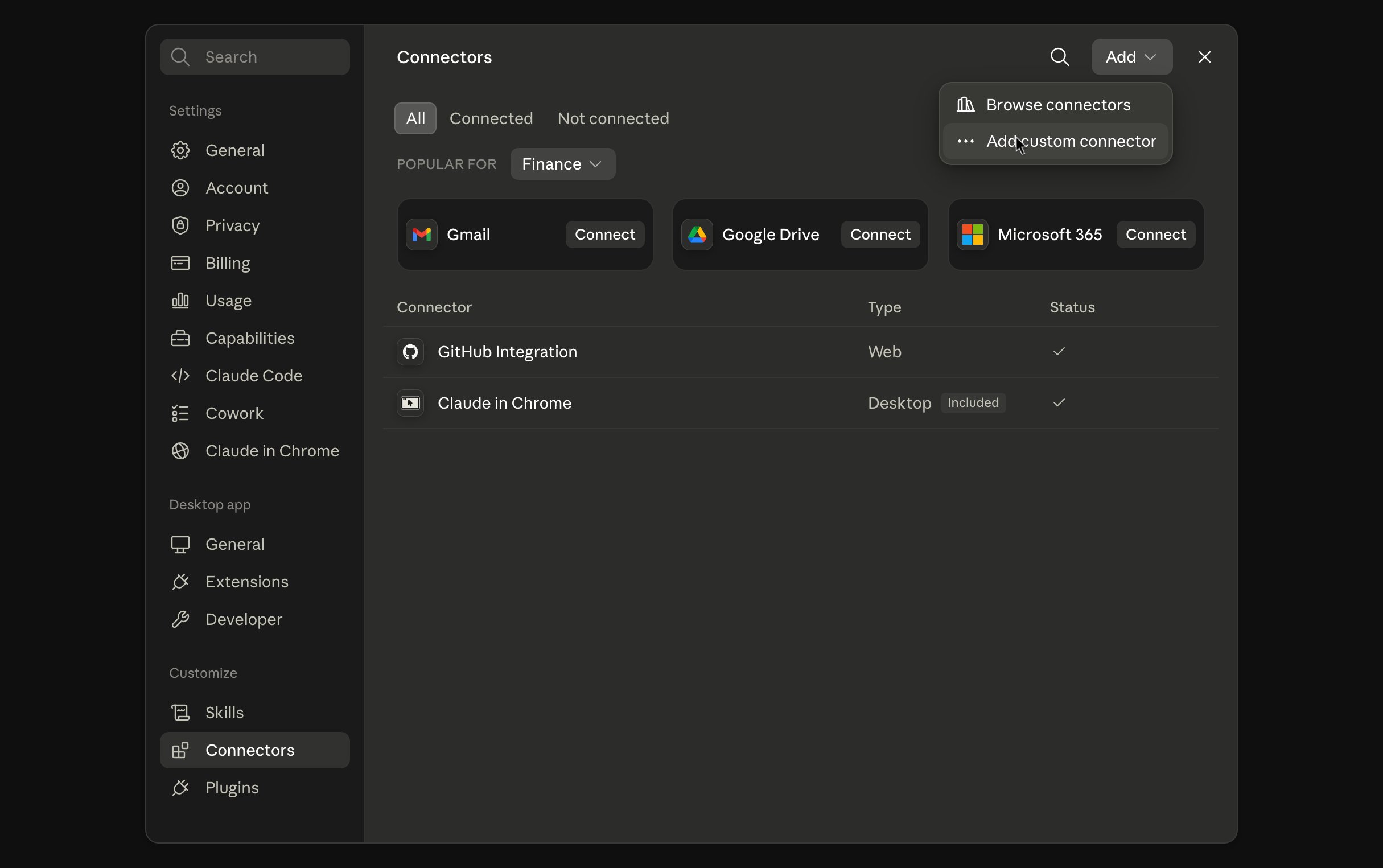
Go to [claude.ai/settings/connectors](https://claude.ai/settings/connectors) (or **Settings → Connectors** in the desktop app) and click **Add custom connector**.
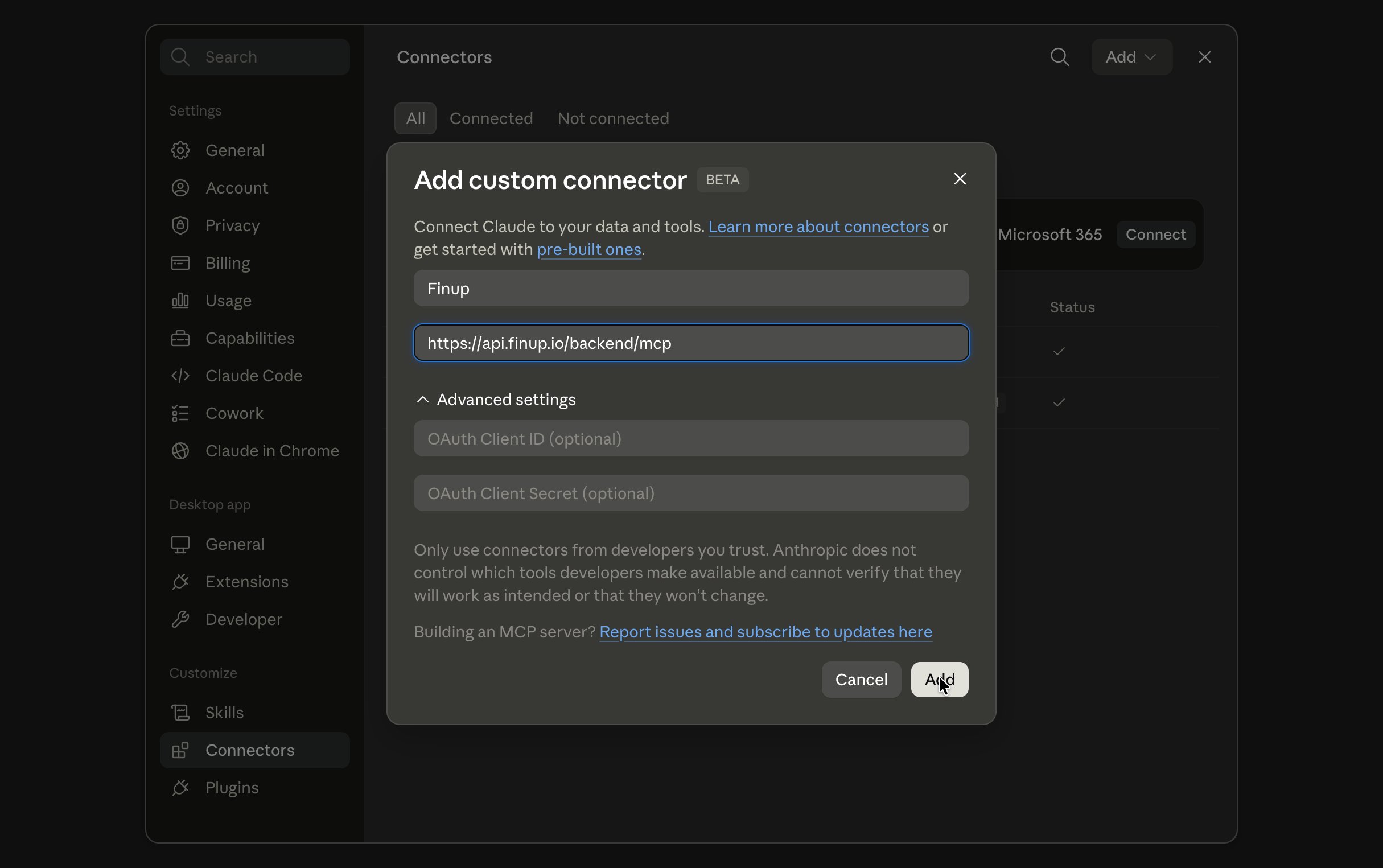
 Enter a name (e.g. `Finup`) and the server URL:
```text theme={null}
https://api.finup.io/backend/mcp
```
Enter a name (e.g. `Finup`) and the server URL:
```text theme={null}
https://api.finup.io/backend/mcp
```
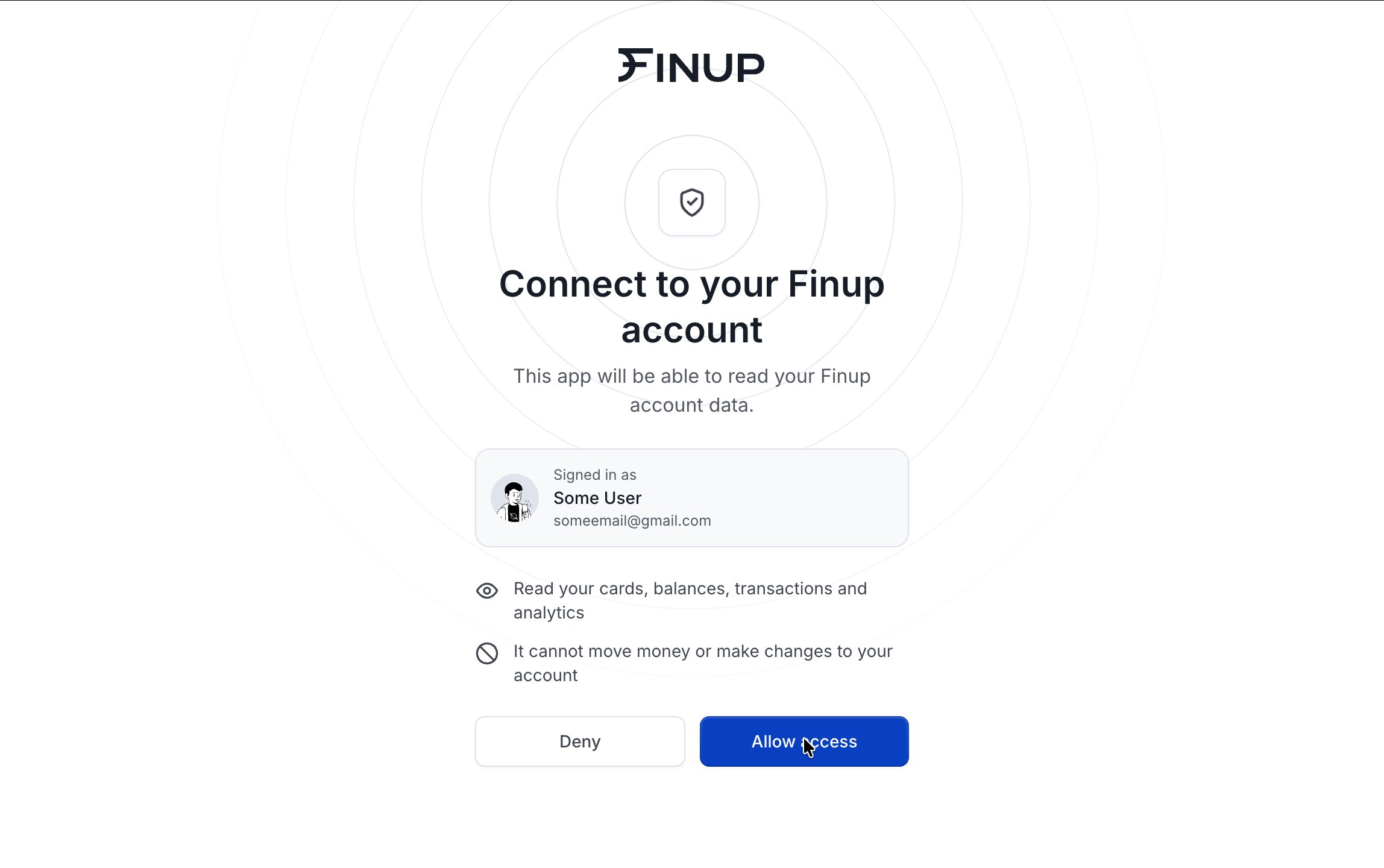
 Click **Connect** next to the new connector. A browser window opens — sign in with your Finup account and approve access.
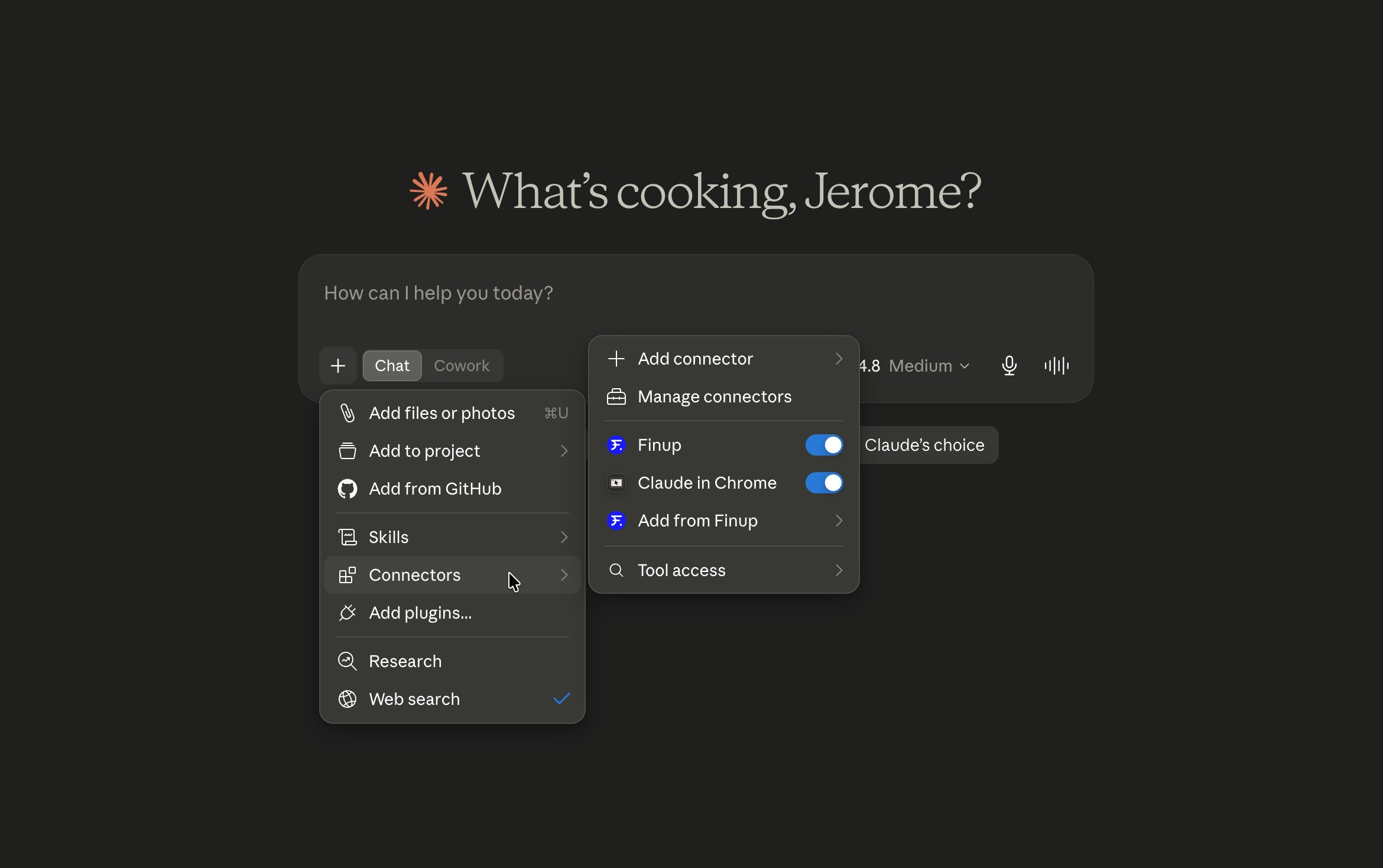
 In any chat, open the tools menu and make sure the Finup connector is enabled, then ask something like "What's my wallet balance?"
 ## Connect to Claude Code
```bash theme={null}
claude mcp add --transport http finup https://api.finup.io/backend/mcp
```
Inside a Claude Code session, run `/mcp`, select **finup**, and complete the sign-in in the browser window that opens.
Run `/mcp` again — **finup** should show as connected with its tools listed.
## Connect to Cursor
Open **Cursor Settings → Tools & MCP → Add new MCP server**, or add this to `~/.cursor/mcp.json`:
```json theme={null}
{
"mcpServers": {
"finup": {
"url": "https://api.finup.io/backend/mcp"
}
}
}
```
Cursor shows a **Needs login** state next to the new server — click it and complete the Finup sign-in in your browser.
The server status turns green in **Settings → Tools & MCP**, and the Finup tools appear in the agent's tool list.
## Other MCP clients
Any client that supports remote MCP servers over **Streamable HTTP** with OAuth (VS Code Copilot, Windsurf, and others) works the same way: point it at `https://api.finup.io/backend/mcp` and complete the browser sign-in when prompted.
## Troubleshooting
* **Sign-in window never opens or errors out** — remove the connector, restart the app, and add it again from scratch. Some apps cache a failed registration.
* **Tools don't appear after connecting** — make sure the connector is enabled for the current chat (Claude: tools menu; ChatGPT: **+** menu; Cursor: MCP server toggled on).
* **Requests return authorization errors after some time** — your session expired. Reconnect the server to sign in again.
## Security
* Access is scoped to your Finup user and role — the assistant sees exactly what you can see in the app, nothing more.
* All tools are read-only. The only thing the server can create is a downloadable statement export you explicitly ask for.
* Full card numbers and CVCs are never exposed; PANs are always masked.
* You can revoke access at any time by removing the connector from your AI app.
Your assistant reads real account data. Only connect Finup in AI apps and workspaces you trust, and be mindful when sharing chats that include balances or transactions.
## Connect to Claude Code
```bash theme={null}
claude mcp add --transport http finup https://api.finup.io/backend/mcp
```
Inside a Claude Code session, run `/mcp`, select **finup**, and complete the sign-in in the browser window that opens.
Run `/mcp` again — **finup** should show as connected with its tools listed.
## Connect to Cursor
Open **Cursor Settings → Tools & MCP → Add new MCP server**, or add this to `~/.cursor/mcp.json`:
```json theme={null}
{
"mcpServers": {
"finup": {
"url": "https://api.finup.io/backend/mcp"
}
}
}
```
Cursor shows a **Needs login** state next to the new server — click it and complete the Finup sign-in in your browser.
The server status turns green in **Settings → Tools & MCP**, and the Finup tools appear in the agent's tool list.
## Other MCP clients
Any client that supports remote MCP servers over **Streamable HTTP** with OAuth (VS Code Copilot, Windsurf, and others) works the same way: point it at `https://api.finup.io/backend/mcp` and complete the browser sign-in when prompted.
## Troubleshooting
* **Sign-in window never opens or errors out** — remove the connector, restart the app, and add it again from scratch. Some apps cache a failed registration.
* **Tools don't appear after connecting** — make sure the connector is enabled for the current chat (Claude: tools menu; ChatGPT: **+** menu; Cursor: MCP server toggled on).
* **Requests return authorization errors after some time** — your session expired. Reconnect the server to sign in again.
## Security
* Access is scoped to your Finup user and role — the assistant sees exactly what you can see in the app, nothing more.
* All tools are read-only. The only thing the server can create is a downloadable statement export you explicitly ask for.
* Full card numbers and CVCs are never exposed; PANs are always masked.
* You can revoke access at any time by removing the connector from your AI app.
Your assistant reads real account data. Only connect Finup in AI apps and workspaces you trust, and be mindful when sharing chats that include balances or transactions.